vCloud Director and vCloud Automation Center (vCAC)

There has been many discussions about the future of vCloud Director and if VMware intends to deprecate it. There is not much information from VMware about its vision but recently there is a great emphasis on vCloud Automation Center for cloud management that is now embedded in vRealize Suite. It seems a great product, especially for enterprises considering that it integrates management of different infrastructures (even physical and public cloud) into a single platform; but I still have some questions when I look at both vCloud Director and vCAC in regards to service providers who offer services to completely different, critical isolated organizations. I have read this blog post by VMware that explains VMware vision of Cloud management and transition plan, but still unsatisfied!

By the way, it seems that sooner or later vCAC will be dominant solution for Cloud management and VMware will add features to satisfy different requirements rapidly. So, it’s a good time to get familiar with this product. I saw this post that is a very good practical introduction and hand out that explains and clarifies basic concepts in vCAC. There is also another simple, more detailed manual here. Of course, more information can be found in VMware documentation.

p.s – From business perspective, it’s a smart move from VMware to focus more on enterprises rather than service providers because cloud service provider market is and will be dominated by other players.

Mixing 802.1Q and 802.1ad in Linux

When it comes to networking, Linux kernel is really superior over Windows. Some will ask why? Apart from performance point of view, there are some great features in Linux that can not be deployed in Windows easily. To give an example, let’s think about 2 important features: support for VLAN and trunking (802.1q) and NIC teaming or Link aggregation (802.1ad).

As far as I know, Windows kernel doesn’t support 802.1q and it all depends on NIC driver and for 802.1ad Windows support starts from Windows 2012 which means it’s too young! and who knows how it works! but both are prolonged features in Linux kernel.

And these features are really useful; for example when one single computer needs to be part of different VLAN’s it needs to be connected to a trunk port on the switch; therefore should understand VLAN tags and decapsulate packets. This single computer can even act as a router between different VLAN segments. Connecting to different VLANs means more traffic, so it’s not a bad idea to double (as an example) its bandwidth by aggregating (bonding) two NIC’s to improve performance. I’m providing 2 links to show how to implement 802.1q and 802.1ad in a single Linux machine with 2 or more NIC’s:

And to have an idea about combining these 2 features, see:

NAT in Fenced vApps (vCloud Director)

An interesting feature in vCloud Director networking is the capability of creating a fenced vApp. Basically, it’s like having an extra  (in case you have one for Organization network which means routed) vShield router and firewall on the edge of vApp.

One of the coolest applications for fenced vApps is when you want to have identical machines (same IP and MAC) in your vDC; it means when you want to do a fast clone without customizing guest OS by changing IP’s and names, … In this case vApps are completely isolated while they can have connection to External networks or perhaps internet! See here for a how-to about creating fenced vApp.

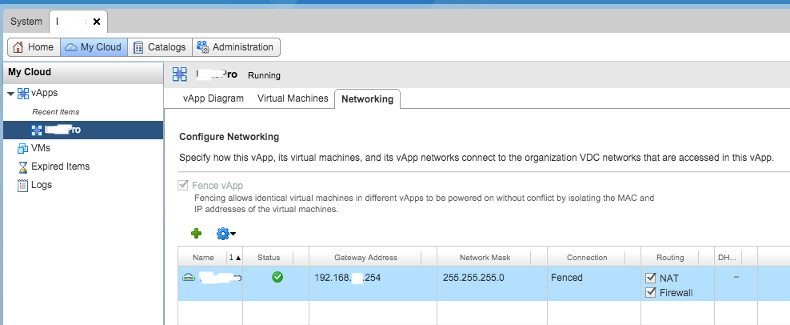
After you created a fenced vApp, you will notice that the IP addresses in the vApp are in the same subnet with Organization Network (see the picture above), although a NAT gateway is operating between the vApp and Organization network. So when you want to do a DNAT (Destination NAT), there are 2 places you should configure. In the picture above, suppose you want to give access to a VM with IP 192.168.0.45 in Fenced vApp from External Network. Assume that Edge 1 got IP 192.168.0.3 (specified while fencing). First, you need to create appropriate rules in Edge Gateway of Organization Network, Edge 2 (if there is any) to NAT and open ports for the IP address of Edge 1 (192.168.0.3)

fenced1

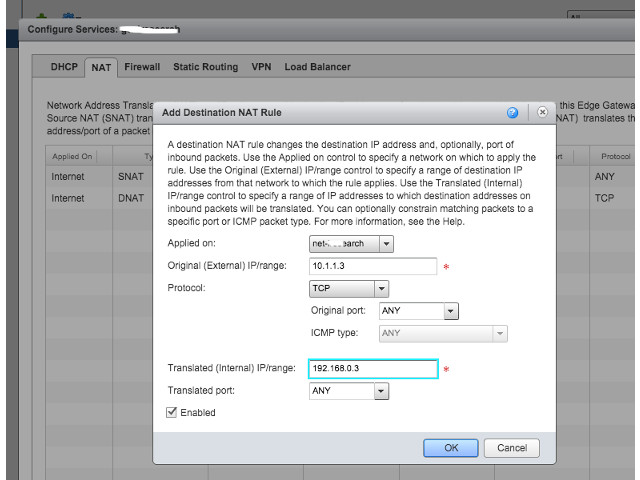
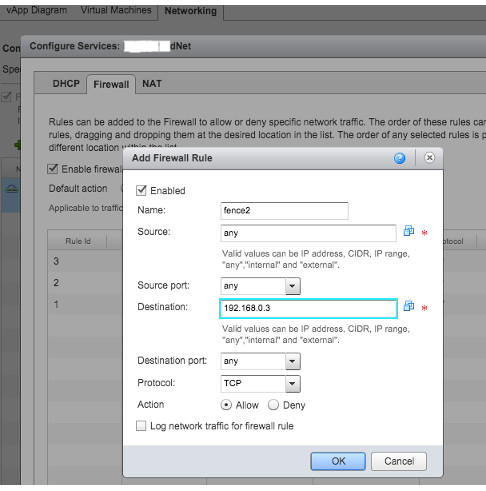
Next step, you need to do NAT and open ports from Edge 1 to specific VM but this configuration is not in Edge Gateways of vDC (unlike Edge 2) but can be found in Networking Tab of the vApp itself.
Click on the vApp, go to Networking tab,

fenced2

right click on the selected network and choose ‘Configure Services’. there, you can define appropriate NAT and firewall rules.

fenced3


VMWorld 2014

As you may know, VMworld 2014 is going on with some big announcements. I didn’t have a chance to take part but fortunately we can find more information from a couple of active bloggers writing about new features, products and visions in VMware. So far, the interesting things to me are:

  • VMware Integration with OpenStack : Apparently, VMware is less flexible for developers comparing to public clouds and VMware is trying to mitigate this gap by OpenStack.
  • EVO: Rail – VMware converged Hardware : While there are some other smaller companies (VMware partners like Nutanix) who provide VMware appliances, I guess VMware sees a demand for this and wants to positively increase competition in converged hardware based on VMware. It’s also getting closer to a Software Defined Data Center. In EVO:RAIL there is a software layer which facilitates deployment of VMware ESXi’s and vCenter and managing VM’s. The interesting thing in EVO:RAIL is the use of VSAN. It’s more suitable for small to medium deployments I would say.

Key authentication with SSH Secure Shell

Non-commercial version of SSH Secure Shell (can be obtained here) from SSH Communications Security is a decent ssh client that I have used for many years in my experiments and academic works. It lacks PKI and PKCS functionality, but still safe for experiments! However; when it comes to public key authentication, it needs some tweaks to work. Here are the steps required to enable key authentication over a Linux host; given that Linux host settings allow public/private key authentication:

  1. Connect to the host using SSH Secure Shell (by password)
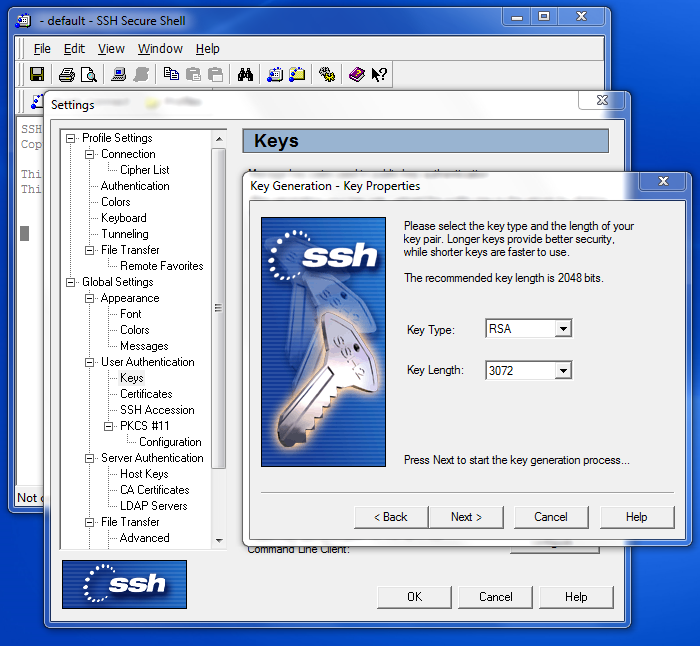
  2. In Secure Shell client, go to: Edit -> Settings -> User Authentication -> Keys and click on ‘Generate New’
    ssh1
  3. When generation is done, it will ask you to upload the public key to the host. Let it upload to ‘.ssh ‘ as destination folder.
    ssh2
  4. It assumes that the host has the appropriate SSH server for this client (the company has SSH server too) but since standard Linux servers use OpenSSH as SSH server, uploading the public key to the host is not enough and needs some modifications that follows.
  5. In Linux host, you will see that a public key (KeyAuthTest.pub in this case) is uploaded in ‘.ssh’ directory. For this to work, there are 2 ways:
    • Edit ‘KeyAuthTest.pub’ manually! and give it the right format. Remove these lines (or something like this) in the beginning:
      —- BEGIN SSH2 PUBLIC KEY —-
      Comment: “[3072-bit rsa, yyyy@xxxx, Thu Oct 04 2012 21:33:49]”
      And this at the end:
      —- END SSH2 PUBLIC KEY —-
      Also, you need to remove all the carriage returns (CR) in this file. Then add ‘ssh-rsa’ in the beginning of the file. The file would be something like:
      ssh-rsa AAAAB3NzaC1yc2EAAAADAQABAAABAQC+…
      Finally, in shell append this file to the ‘authorized_keys’ file :
      cat ~/.ssh/KeyAuthTest.pub >> ~/.ssh/authorized_keys
    • Second approach: convert the key to proper OpenSSH format automatically and append it to the file:
      ssh-keygen -i -f ~/.ssh/KeyAuthTest.pub  >>  ~/.ssh/authorized_keys

Now, you will be able to connect to the host, using this public key.

MS SQL Server Clone in VMware

Having templates and cloning VM’s can be very handy for fast deployment. Suppose that you want to deploy an instance of a sophisticated Web application consisting of different functional servers like database, web, mail, messaging, etc. It is desirable to clone the whole application, saving lots of time to configure each server and establish connectivity between them. VMware enables us to do this by using vApp templates. vApp templates are also available in vCloud Director.

However, when it comes to Microsoft SQL Server, an issue is raised when you rename the server during cloning or customize operating system in vCloud! It’s because SQL server contains some internal databases (like master) and metadata that store system name and working with SQL server in this situation will cause problems. To prevent this issue, you can do the following:

1) Enable a sysadmin SQL account (like ‘sa’) before cloning.

2) After clone, login to new SQL Server using a non-Windows sysadmin (like ‘sa’)

3) issue the following commands in a Query window:
exec sp_dropserver ‘OldserverName’
go
exec sp_addserver ‘NewServerName’, ‘LOCAL’
go

4) Restart SQL Server services

System Administration, Cloud and Coding!

As virtualization and cloud are getting more common, deploying more and more servers is really tempting for companies because it’s easier and needs less cost.

However it brings the subject of managing servers into attention. System administrators now should find solutions to decrease the time of deployment and applying changes in configurations and fixes. Under the influence of Cloud and Virtualization, business and product owners expect quick reaction from IT department; although cloud and hypervisor infrastructures provide easy and quick ways to deploy servers but still there are many tasks that require novel ideas to be automated and here is where sort of coding and logic meets system administration.

There are some tools designed for this purpose. Web giants like Google and Amazon have long used software that automatically configures the vast collection of machines driving their online services. But as Luke Kanies (CEO and Founder of  Puppet Labs) says: “Google does [things] differently, and in many cases, they do it better. Amazon is the same way. But what’s really frustrating is that no one else can use their software, I wanted to build a tool that would help other companies solve the same problem.”

Among them, Puppet is getting more attention and recent investments from big IT groups like VMware and Cisco make it attractive for companies who use virtualization and cloud. By the way, if you are a system administrator, sooner or later you will see the need for using either Puppet or any other management and automation software. Get ready!

VMware vCD Guest Customization for Debian

One of the great features in vCloud Director is client’s capability to customize general specifications of a VM. Specifications like Hostname and more importantly IP address(es). Customer can even have some scripts for more advanced customizations like joining to a domain, … All these depend on ‘Guest OS Customization’ feature that should be enabled on a VM. Not all the operating systems support ‘Guest OS Customization’. For a list of supported OS’s in vCD 5.x see these links:

Supported guest operating systems in vCloud Director 5.5
– Supported guest operating systems in vCloud Director 5.1

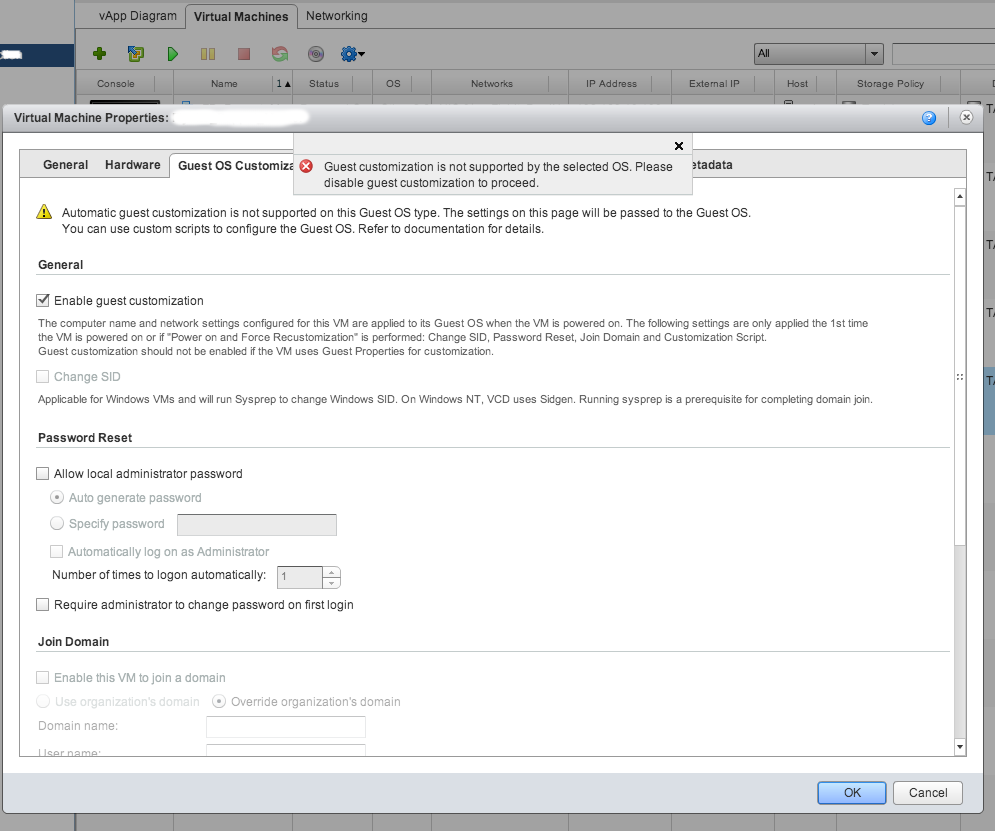
As you can see, there is no support for Debian Linux! What a pity! If you deploy a Debian and want to change its IP through VM Properties in vCD portal, it will give you an error:

“Guest customization is not supported by the selected OS. Please disable guest customization to proceed.”

Debian_custom

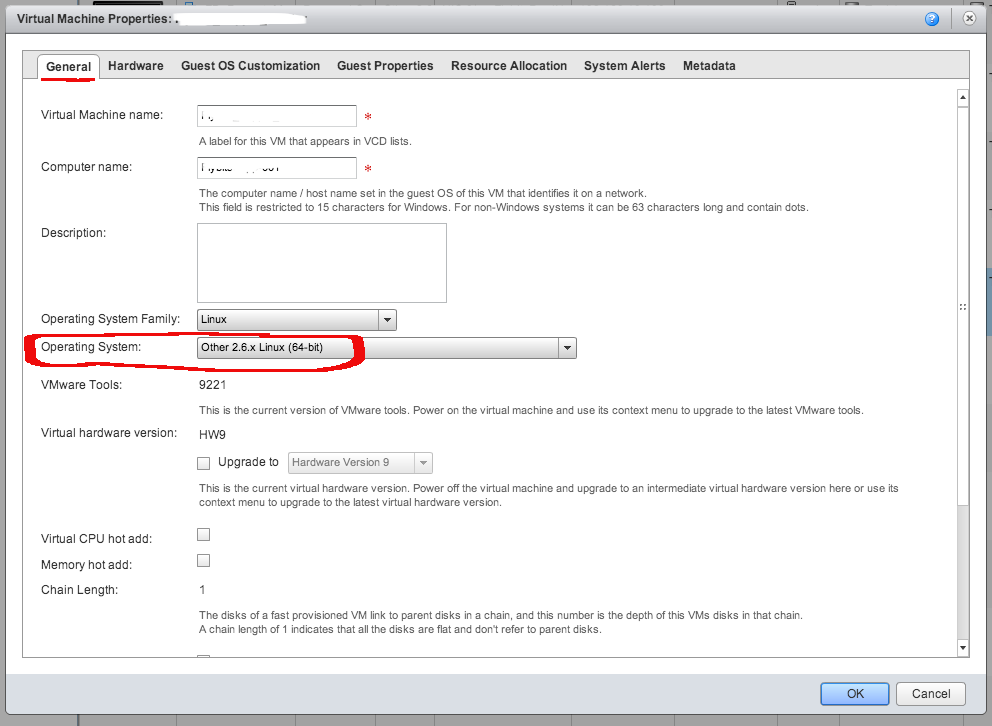
Debian is a great OS and many clients may get disappointed! But fortunately, there is a simple work-around for it: change the Operating System type to: Other Linux and Guest Customization will be fine! Of course, try to choose the closest kernel version, for example choose ‘Other 2.6.x Linux (64-bit)’ for a Debian wheezy with kernel 3.2.0-amd64.

Debian_custom2

By this change, modifying Hostname or assigning IP addresses, Gateway, DNS to Debian NICs would be possible like any other supported OS.

VPN access for vCloud Director Customers

Providing VPN access to vCD customers is a great idea, because usually customers are behind a vCloud created firewall and most likely you created a routed organization VDC network to connect them to external network. So, how they have to get access to their VDC? One approach could be to define different sets of firewall and NAT rules for required access ports (SSH, RDP, …) but when the number of VM’s grow, this would be less flexible but of course still doable. Even a customer can get access to only one VM and go through this single VM to access the others; however sometimes it’s not a simple remote access and remote user wants to do a more advanced task.

By the way, I don’t want to go into the details of benefits of having a VPN for remote clients but it seems like a very helpful facility for cloud customers. We can leave it to the user to install its own VPN server to tunnel through to get access to organization VDC network but VMware provides this excellent capability to setup VPN gateways in vCloud Director or vSphere Cluster. For a Site-to-Site IPsec VPN, VMware vCD is pretty much straight forward. So, if you have a VPN gateway in place, easily you can establish a tunnel between your local network and your organization network in the cloud. I found this guide about setting up an IPSec tunnel in vCloud Director with useful examples, one with a Cisco WAN router. Here is another guide for a Cisco PIX and vCD; although the vCD version is old (1.5) but it’s too similar in terms of VPN tunnelling.

However, if you don’t have a VPN endpoint in-place and still want to establish a secure VPN-connection with your vCD organization network as a remote user, VMware provides this brilliant SSL VPN utility. It’s not as straight forward as IPsec VPN and it’s not present in vCD web portal but it worths deploying (especially for customers). VMware SSL VPN should be configured in vCloud Networking and Security solution (which is a new name for vShield Manager).

I’m not writing a How-To for this here and a complete step by step guide can be found here, very well explained by Ranga Maddipudi. I just wanted to give some idea and as you can see, deploying a SSL VPN gateway is fairly easy and an installable file (.exe file for Windows) will be provided. To get this file, on the client side use should use the browser to download the file. The URL for downloading the package would be: https://external-ip-address-of-gateway:443
After getting the file, user can easily install the VPN client and that’s it.
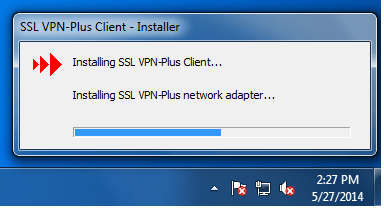
SSL-VPN1

Running the application and entering the right credentials, VPN connection will be established and given that the configurations are server side are well defined, remote user will get access to VDC organization network in the cloud. In fact, what excites me is that from engineering point of view, VMware did a great job to ease the whole procedure of setup a connection on both server and client side; in specific, generating a custom designed VPN client using SSL (as authentication and encryption protocol) VPN is a brilliant idea.
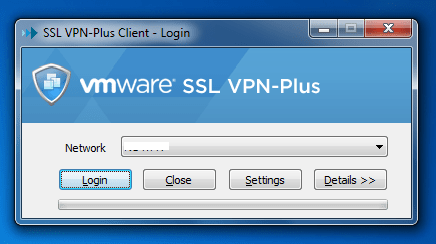
SSL-VPN2

Troubleshooting WordPress Screen of Death

Last week I was asked to look into an on-premise WordPress website with a very low performance. I’m not expert in WordPress but I could say that comparing to the structure of the website and contents, it was too slow. Examining the system logs, I understood that memory usage reaches to its limit very soon as a result of huge consumption of Apache processes; in fact eventually Apache was returning white screen (500 error) to the visitors.  So, definitely something was wrong and simple troubleshooting guides mentioning to disable plugin and themes and even overwriting wordpress files didn’t help me! Clueless!

But when I was backing up the wordpress database to move it to a fresh Linux machine, something came to my attention: the dumped file was too big for their contents. Also, as soon as I imported the db into new mySql, the website became slow and eventually went down! So, it turned out that the issue is in the WordPress database. Using ‘phpmyadmin’ I found the largest table which was ‘wp_options’! I ran a simple query on it to see what’s in it? browsing through the results, soon I saw some irrelevant stuff. OMG! WordPress database was hacked and some HTML pages were inserted into ‘wp_options’ table! No wonder that website was slow! the ‘option_name’ of this table was filled with stuff like ‘/?tid=michael-kors-sac-CclA21.html’ and the value was a complete HTML file! Around 35000 of these rows were inserted and made a huge database.

So, I started cleaning database and getting more information about hacking WordPress. By the way, I put the clean database in a fresh installation of WordPress in a new machine and asked them to follow the best practices for securing WordPress website. I didn’t find similar situation on Internet, so I though it worths sharing, although I’m not a WordPress expert!