vCloud Automation Center Installation – 2

Although as I said the vCAC installation guide by Kendrick Coleman is fairly complete, there is something that can be added. In part 4, item 4, I was able to get “Native Active Directory” working that is easier for assigning administrator to vsphere.local. Maybe because I’m using vCAC 6.0.1. But remember that Native Active Directory can be used only for default tenant. So, specifying default tenant administrator using Native Active Directory is as follows:

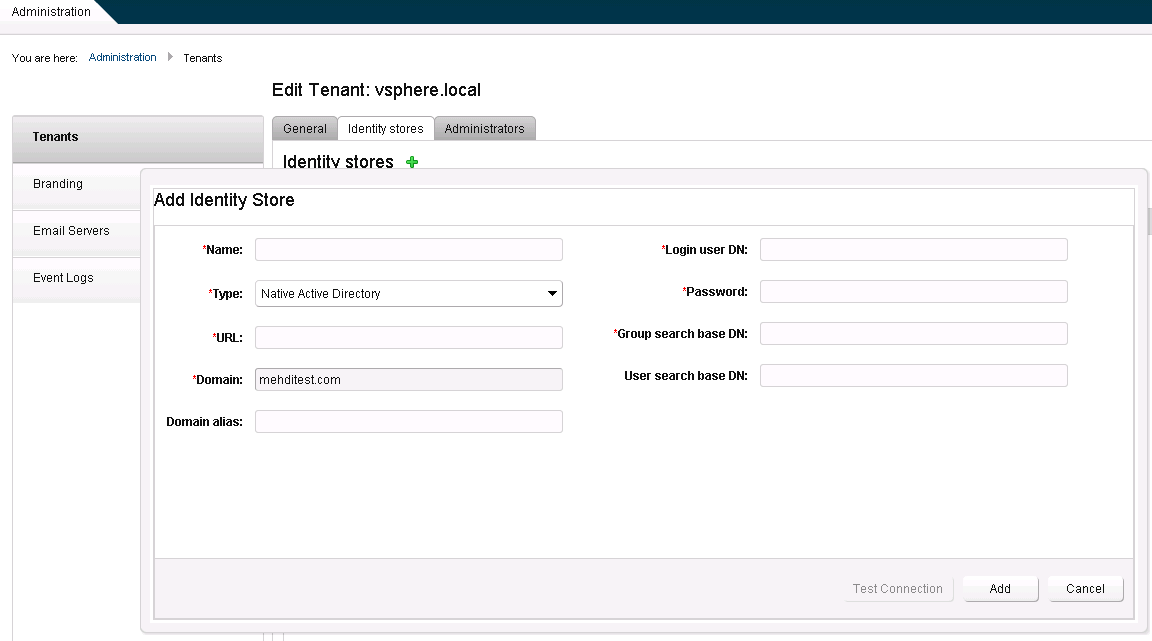
  • Click on vsphere.local and go to ‘Identity stores’, click on ‘+’ to Add Identity Store. Choose ‘Native Active Directory’ from Type drop-down menu. Now the only thing that should be defined is: Domain, the other fields would get grey/inactive. If everything goes well, the Active Directory domain will appear in Identity Stores list.

vcac_native_ad1

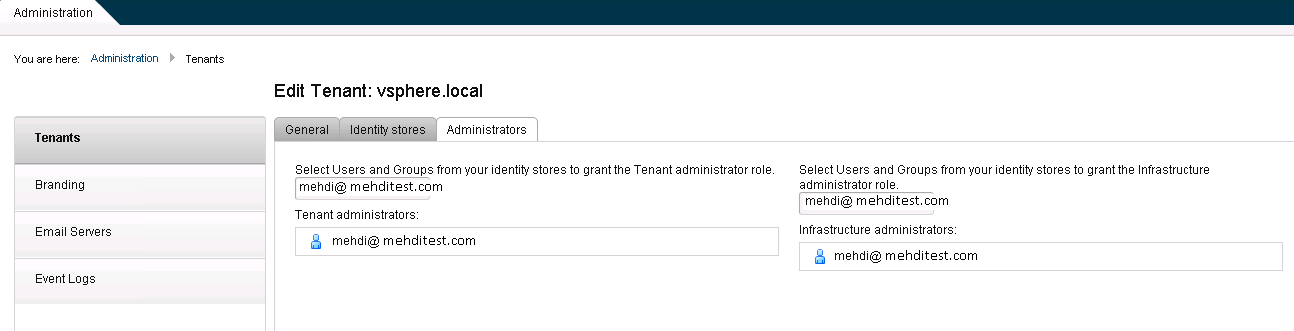
  • Then, go to Administrators tab and search for a specific user like ‘user@yourADdomain.com’. Do this for both Tenant Administrator and Infrastructure Administrator roles.

vcac_native_ad2

That’s all. Default tenant administrator is specified.

vCloud Automation Center Installation – 1

Installing VMware vCloud Automation Center is strongly recommended for the beautiful things that administrators or tenants can do. An example is deploying popular big data clusters using a very simple procedure (I will post a how-to soon for this). There is a perfect and comprehensive 7-part installation, configuration manual written by Kenny Coleman which can be found here.
So, if you didn’t deploy vCAC in your management environment yet, install and you will enjoy it!

p.s – I found Part 3 (Installing IAAS) of this guide the most difficult one. There are some hints that I would like to add:

  • To ease installation, don’t use external MS SQL server. Instead, install SQL Express 2012 on the same Windows machine (IAAS and Model Manager Server).
  • Make sure that DNS settings are correct and IAAS Server FQDN can be resolved.
  • If you don’t use Active Directory, YOU MUST specify domain name in Primary DNS suffix of System Properties to make computer full name like its FQDN. It’s very important that in Step 8, Current Server filled automatically with FQDN and not Stand-Alone Server name. Domain should be there. Or you will face with an error (in Logs) like:
    “Building Project “C:\Program Files (x86)\VMware\vCAC\Server\Model Manager Data\DeployRepository.xml” (VARegistrationFinalSteps target(s)) — FAILED.
    Build FAILED.
    Authentication issue
    ……
    this error occurs when either the username or password supplied to iis is invalid
    …..

vCloud Public Console Proxy IP Address

You may have noticed that vCloud Director uses 2 important IP addresses to provide public access to tenants/users. One is the well-known front-end VCD IP address which is access to web portal for managing the organization vDC (also known as HTTP access) and second one provides remote access to virtual console of VM which is in fact resided on ESXi server cluster (known as VRMC access), this latter one is sort of more back-end because it’s coming from ESXi server which never should be exposed to public! So, vCloud Director actually tunnels Remote Console communications between ESXi servers and users through a proxy agent on port 443. Apparently, the proxy service runs on vCloud Director machine. That’s why an extra IP is needed on vCloud Director. This IP address is also specified in initial setup but it can be changed later (of course everything can be changed!).

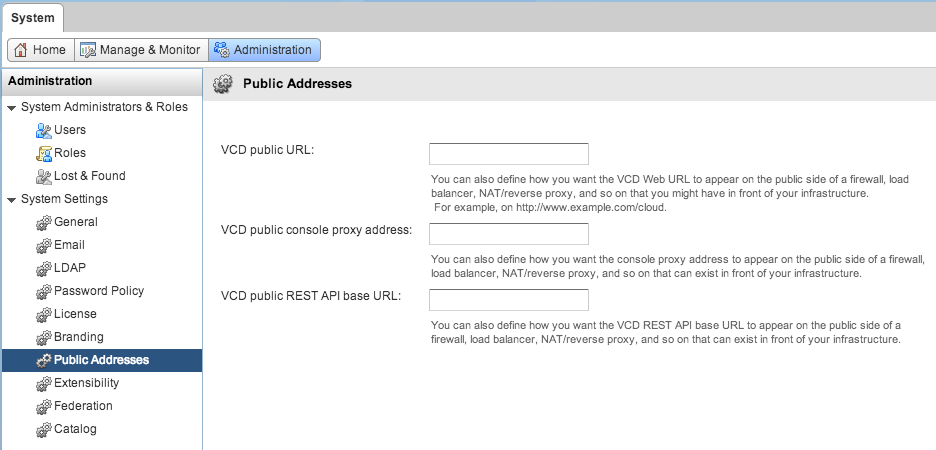
So, when you want to open up vCloud Director for public users, you should pay enough attention to VRMC IP address and port. If you  have to do NAT through your firewall you should specify a different IP for VRMC and introduce the public IP/URL to vCloud Director in administration web panel. See the picture below:

Also, port 443 should be opened for this public IP on the firewall.

If you need more information about publicizing the whole vCloud Director, I found this excellent blog post about this topic, although it’s very useful for a general architecture of vCD deployment:

vSphere ESXi on Dell Servers

Just a quick note that if you want to install vSphere ESXi on Dell server hardwares, it’s better to download and use Dell customized ISO image for installation because it has proper drivers, especially NIC drivers. You can find your desired ISO images at the following links:

Microsoft Web Farm Framework Installation Tips for Windows 2008 R2

Microsoft Web Farm Framework can be very useful for system administrators, especially when they have to manage multiple web servers (IIS) in a cluster behind load balancer. It makes the task of updating web applications much easier because the only server that you need to update would be Primary server. It’s also integrated with ARR for load balancing and scaling web servers. Its installation and configuration is fairly easy but if you have Windows Server 2008 R2, you must be careful to satisfy the exact system requirements it needs. In specific, for Controller server these are important modules which should be installed:

  • Microsoft Web Platform Installer V3 (Web PI v3) AND NOT LATER VERSIONS
  • Microsoft Web Deploy v2 AND NOT LATER VERSIONS

I’m emphasizing on not installing later versions because newer versions exist on the market (actually Microsoft) but newer versions are not compatible with WFF. So, if you install Web Platform Installer 4.6 or Web Deploy 3.5 on Controller, WFF installation will fail. To get Web Platform 3 and other components, go to the following download links:

http://www.microsoft.com/en-ca/download/details.aspx?id=6164   (Web Platform Installer)
http://www.microsoft.com/en-ca/download/details.aspx?id=25230 (Web Deploy 2)
http://www.microsoft.com/en-us/download/details.aspx?id=27723  (Web Farm Framework)

If you have Windows 2012, your job is easier because Web Farm is kind of native feature there.

p.s – good HOW TO about using Microsoft Web Farm Framework

Introducing the Microsoft Web Farm Framework
Creating a Server Farm with the Web Farm Framework

Router!

I don’t know how it has started, but I think at the moment ‘Router’ is the most misunderstood term in networking! People, even some technicians use it in wrong places. Yesterday I had a discussion with a technician who insisted to get a gateway/router IP address to do some local communication. When I asked him why you need it? I heard irrelevant explanations!  In this case, it turned out that he needed a DHCP server! but in general many think that Router/Gateway is a mandatory device in networking! while rarely they think of switch! Maybe we should blame Wireless AP producers!

Add a Datastore in vCloud Director 5.5

As you may know, vCloud Director 5.1 recognized ‘Storage Profiles’ instead of recognizing datastore or datastore clusters directly. In VCD 5.5, ‘Storage Profiles’ are changed to ‘Storage Policies’ .This change of concept and term from ‘Profiles’ to ‘Policies’ may make some issues when you want to add a Datastore and utilize it in vCloud Director 5.5. As a matter of fact, if you (like me) are used to vSphere Client instead of vSphere Web Client to do your tasks (because it seems faster!) you will fall into troubles and this is one of those scenarios.

The normal procedure to add a datastore to the infrastructure in order to provision it in vCloud Director 5.1 is:

  1. Add datastore to the VMware infrastructure in vCenter using VMware vSphere Client (or Web Client)
  2. Assign a pre-defined ‘Storage Capability’ to datastore. If you didn’t define ‘Storage Capability’ yet see link above to see how to create and enable it. This ‘Storage Capability’ is assigned to a ‘Storage Policy’ itself! I know it’s confusing! and ‘Storage Profiles’ are known in vCloud Director through connected vCenter. An important bug is mentioned here that you should assign a ‘Storage Capability’ to your datastore before adding it to a datastore cluster. Keep this in mind if you are just adding datastore to an existing ‘Storage Profile’.
  3. So, if you didn’t add ‘Storage Profile’ in vCloud Director before, you should do so now; if it’s introduced before you can right-click on your vCenter in vCloud Director (‘Manage and Monitor’) and ‘Refresh Storage Profiles’. It’s not necessary, it will be done automatically after some time.

The regular procedure and storage terms in vSphere/VCD 5.5 is different than 5.1. The point is vSphere Client 5.5 (not Web Client) is still using the old terms and if you add datastore using vSphere Client 5.5, datastore cluster will disappear in vCloud Director and Provider VDC’s will not have access to datastores! No need to say it’s not a pleasant situation! So, to utilize a new datastore in vCloud Director 5.5 follow the procedure explained here. As I said, it’s very important to use vSphere Web Client to add datastore to infrastructure. In brief:

  1. Add datastore to the VMware infrastructure in vCenter
  2. The good thing in vSphere 5.5 is that there is no ‘Storage Capability’ which is less confusing (it’s confusing because you expect to find a very complicated concept but when you use it you see that it’s nothing more than a label!) and it’s replaced by a simple word: ‘tag’. So, if you already defined a ‘Storage Policy’ with a known ‘tag’, the only thing is to ‘Assign  Tag’ to datastore by right-clicking on it. If you have upgraded infrastructure from 5.1, storage capabilities are already converted to tags.
  3. Right-click on your vCenter in vCloud Director (‘Manage and Monitor’) and ‘Refresh Storage Policies’. As you see storage profile is replaced with storage policy in VCD 5.5.

Using NLB in VMware Environment

It’s very interesting that sometimes things work not in a way you expect. Well, it happens a lot in computer networking! By the way, using Microsoft Network Load Balancing in a VMware environment is one of them. In specific, when you intend to deploy Microsoft NLB in Unicast mode, you should be cautious. The reason for NLB not to work properly is well explained in the following Link:

Microsoft NLB not working properly in Unicast mode

In brief, NLB mechanism is based on hiding common, shared MAC address it assigns to all involved hosts from switch (by special kind of encapsulation I suppose) but ESX/ESXi hosts expose this common MAC address in certain conditions that will enable switch to learn the location and sends all the traffic to that specific port (ESX/ESXi host) which is against purpose of load balancer! There is a work around though which is suggested in the link above.

IP LAYER MONITORING IN VMWARE VSPHERE – 2

2 posts earlier, I talked about NetFlow in VMware 5.x and how to enable it in vSphere dvSwitch. I have also shown how you can send IP traffic flow information to a NetFlow collector. Nowadays, there are lots of commercial NetFlow collectors available; however, in this post I will introduce a simple, open-source NetFlow collector which you can use in your VMware environment to analyze IP traffic. This pretty piece of software is: ‘nfdump

As it’s shown, Nfdump has 2 major elements: ‘nfcapd‘ which is a daemon to gather and store relevant packets and ‘nfdump‘ which collects packets from all the daemons and interprets them. Apparently, nfcapd and nfdump could run on different machines and there could be multiple daemons but in case of VMware vSphere, it depends solely on the number of dvSwitches. If there is only one distributed switch, all the IP traffic flow information from all portgroups in that dvSwitch will be forwarded to one nfcapd. For test purposes, I also deployed both nfdump and nfcapd on a single linux machine but in cases that traffic is high, it maybe a good idea to deploy them on two different machines. Of course nfdump should have access to the storage in that case.

After installation, first you need to run daemon and specify a port and directory to store ip traffic information. Apparently, nfcapd will store information in binary. The command is simple, something like this:

  • nfcapd -w -D -l /var/netflow/dvswitch -p 23456

Then, daemon will run and listen to the specified port: 23456. If you have configured dvSwitch correctly (by specifying ip address of linux machine and 23456 as port) and activated monitoring on some portgroups in vCenter, this daemon will generate a couple of files in that directory.
Now, whenever you want to view the captured ip traffic flows, you should run nfdump. Since there are lots of files in that directory, you can interpret the whole directory using -R option with this command:

  • nfdump -R /var/netflow/dvswitch/

Filtering in nfdump is also possible, pretty much the same as tcpdump and you can view traffics of interest. You can find more information on nfdump website.

To view NetFlow captured traffic visually, you can mix nfsen with nfdump. It uses information that is dumped by daemon and utilizing rrdtool, it visualizes traffic flow. Installation is not difficult and you can see more information on their website. I’m really satisfied by this beautiful combination of nfdump and nfsen and if you intend to use NetFlow for monitoring, I recommend trying them. Good Luck!
Maintenance Plan For Databases in VMware environment

A quick note:

Maintaining database server in a VMware environment is crucial. In specific, taking regular backups is really important. Not only it helps in restoring database to a good state in emergency cases, but also it stops oversizing transaction log files. As there would be many transactions in a VMware environment, if you don’t pay attention to transaction log file, you will end up with a huge transaction log file (at least in MS SQL case) or your disk may become full and cause your whole environment to stop functioning. So, it is really important to have a maintenance plan in databases server (MS SQL or Oracle) appropriate for your environment.