Add a Datastore in vCloud Director 5.5

As you may know, vCloud Director 5.1 recognized ‘Storage Profiles’ instead of recognizing datastore or datastore clusters directly. In VCD 5.5, ‘Storage Profiles’ are changed to ‘Storage Policies’ .This change of concept and term from ‘Profiles’ to ‘Policies’ may make some issues when you want to add a Datastore and utilize it in vCloud Director 5.5. As a matter of fact, if you (like me) are used to vSphere Client instead of vSphere Web Client to do your tasks (because it seems faster!) you will fall into troubles and this is one of those scenarios.

The normal procedure to add a datastore to the infrastructure in order to provision it in vCloud Director 5.1 is:

  1. Add datastore to the VMware infrastructure in vCenter using VMware vSphere Client (or Web Client)
  2. Assign a pre-defined ‘Storage Capability’ to datastore. If you didn’t define ‘Storage Capability’ yet see link above to see how to create and enable it. This ‘Storage Capability’ is assigned to a ‘Storage Policy’ itself! I know it’s confusing! and ‘Storage Profiles’ are known in vCloud Director through connected vCenter. An important bug is mentioned here that you should assign a ‘Storage Capability’ to your datastore before adding it to a datastore cluster. Keep this in mind if you are just adding datastore to an existing ‘Storage Profile’.
  3. So, if you didn’t add ‘Storage Profile’ in vCloud Director before, you should do so now; if it’s introduced before you can right-click on your vCenter in vCloud Director (‘Manage and Monitor’) and ‘Refresh Storage Profiles’. It’s not necessary, it will be done automatically after some time.

The regular procedure and storage terms in vSphere/VCD 5.5 is different than 5.1. The point is vSphere Client 5.5 (not Web Client) is still using the old terms and if you add datastore using vSphere Client 5.5, datastore cluster will disappear in vCloud Director and Provider VDC’s will not have access to datastores! No need to say it’s not a pleasant situation! So, to utilize a new datastore in vCloud Director 5.5 follow the procedure explained here. As I said, it’s very important to use vSphere Web Client to add datastore to infrastructure. In brief:

  1. Add datastore to the VMware infrastructure in vCenter
  2. The good thing in vSphere 5.5 is that there is no ‘Storage Capability’ which is less confusing (it’s confusing because you expect to find a very complicated concept but when you use it you see that it’s nothing more than a label!) and it’s replaced by a simple word: ‘tag’. So, if you already defined a ‘Storage Policy’ with a known ‘tag’, the only thing is to ‘Assign  Tag’ to datastore by right-clicking on it. If you have upgraded infrastructure from 5.1, storage capabilities are already converted to tags.
  3. Right-click on your vCenter in vCloud Director (‘Manage and Monitor’) and ‘Refresh Storage Policies’. As you see storage profile is replaced with storage policy in VCD 5.5.

Using NLB in VMware Environment

It’s very interesting that sometimes things work not in a way you expect. Well, it happens a lot in computer networking! By the way, using Microsoft Network Load Balancing in a VMware environment is one of them. In specific, when you intend to deploy Microsoft NLB in Unicast mode, you should be cautious. The reason for NLB not to work properly is well explained in the following Link:

Microsoft NLB not working properly in Unicast mode

In brief, NLB mechanism is based on hiding common, shared MAC address it assigns to all involved hosts from switch (by special kind of encapsulation I suppose) but ESX/ESXi hosts expose this common MAC address in certain conditions that will enable switch to learn the location and sends all the traffic to that specific port (ESX/ESXi host) which is against purpose of load balancer! There is a work around though which is suggested in the link above.

IP LAYER MONITORING IN VMWARE VSPHERE – 2

2 posts earlier, I talked about NetFlow in VMware 5.x and how to enable it in vSphere dvSwitch. I have also shown how you can send IP traffic flow information to a NetFlow collector. Nowadays, there are lots of commercial NetFlow collectors available; however, in this post I will introduce a simple, open-source NetFlow collector which you can use in your VMware environment to analyze IP traffic. This pretty piece of software is: ‘nfdump

As it’s shown, Nfdump has 2 major elements: ‘nfcapd‘ which is a daemon to gather and store relevant packets and ‘nfdump‘ which collects packets from all the daemons and interprets them. Apparently, nfcapd and nfdump could run on different machines and there could be multiple daemons but in case of VMware vSphere, it depends solely on the number of dvSwitches. If there is only one distributed switch, all the IP traffic flow information from all portgroups in that dvSwitch will be forwarded to one nfcapd. For test purposes, I also deployed both nfdump and nfcapd on a single linux machine but in cases that traffic is high, it maybe a good idea to deploy them on two different machines. Of course nfdump should have access to the storage in that case.

After installation, first you need to run daemon and specify a port and directory to store ip traffic information. Apparently, nfcapd will store information in binary. The command is simple, something like this:

  • nfcapd -w -D -l /var/netflow/dvswitch -p 23456

Then, daemon will run and listen to the specified port: 23456. If you have configured dvSwitch correctly (by specifying ip address of linux machine and 23456 as port) and activated monitoring on some portgroups in vCenter, this daemon will generate a couple of files in that directory.
Now, whenever you want to view the captured ip traffic flows, you should run nfdump. Since there are lots of files in that directory, you can interpret the whole directory using -R option with this command:

  • nfdump -R /var/netflow/dvswitch/

Filtering in nfdump is also possible, pretty much the same as tcpdump and you can view traffics of interest. You can find more information on nfdump website.

To view NetFlow captured traffic visually, you can mix nfsen with nfdump. It uses information that is dumped by daemon and utilizing rrdtool, it visualizes traffic flow. Installation is not difficult and you can see more information on their website. I’m really satisfied by this beautiful combination of nfdump and nfsen and if you intend to use NetFlow for monitoring, I recommend trying them. Good Luck!

Maintenance Plan For Databases in VMware environment

A quick note:

Maintaining database server in a VMware environment is crucial. In specific, taking regular backups is really important. Not only it helps in restoring database to a good state in emergency cases, but also it stops oversizing transaction log files. As there would be many transactions in a VMware environment, if you don’t pay attention to transaction log file, you will end up with a huge transaction log file (at least in MS SQL case) or your disk may become full and cause your whole environment to stop functioning. So, it is really important to have a maintenance plan in databases server (MS SQL or Oracle) appropriate for your environment.

DV portgroup is not found in the inventory after creation

Just for documentation that may help somebody else. The other day, I’ve got the following error when I intended to create an Organization VDC network in vCloud Director:

“Cannot deploy organization VDC network  (4a0c24d9-9f10-442b-8cb0-0fa9e8ccf0c8)
– com.vmware.ssdc.util.LMException: DV portgroup dvs.VCDVSNet1-a82df557-76db-4e37-9de3-53f4167db22c is not found in the inventory after creation
– DV portgroup dvs.VCDVSNet1-a82df557-76db-4e37-9de3-53f4167db22c is not found in the inventory after creation”

Normally vShield manager is the first thing I would suspect, but in this case it wasn’t the cause. I looked into many things and everything seemed normal. By the way, vCD Director is a software solution and unexpected things may happen. I thought restarting vCloud Director service is a good idea and yes, it worked! Therefore, the solution for me was running this command in vCloud Director server:

service vmware-vcd restart

Of course it may not fix the issue in your case. If it doesn’t help, look into VCD Cells page in cloud administrator console to see if there is an error message that maybe useful. Also, reconnecting vCenter is recommended.

p.s – VMware technical support told me to look into vCenter to monitor its CPU and memory usage. That’s a good point to be considered if everything else is okay and it’s not a configuration issue I believe. Also, database server may be slow not being able to return the result of a query in an acceptable time.

IP Layer Monitoring in VMware vSphere – 1

Following my last post about administration and monitoring tasks in VMware 5, I will talk about another promising feature of VMware vSphere 5.x: supporting NetFlow. NetFlow is a network protocol developed by Cisco for collecting IP traffic information. NetFlow has become an industry standard for traffic monitoring.
As I wrote earlier, cloud/network engineers would like to have the same capabilities in virtualization as they have in physical networks and nowadays NetFlow is turning out to be the new trend in producing networking devices such as switches. In the same way switches support NetFlow, VMware implemented NetFlow that can be enabled on vSwitches, specifically very useful in Distributed switches. Good to mention that from version 5.1 VMware also supports newer version of NetFlow which is IPFIX.  You can find more information about NetFlow by itself on the internet.
Configuring NetFlow in VMware vSphere is a 2 step process:

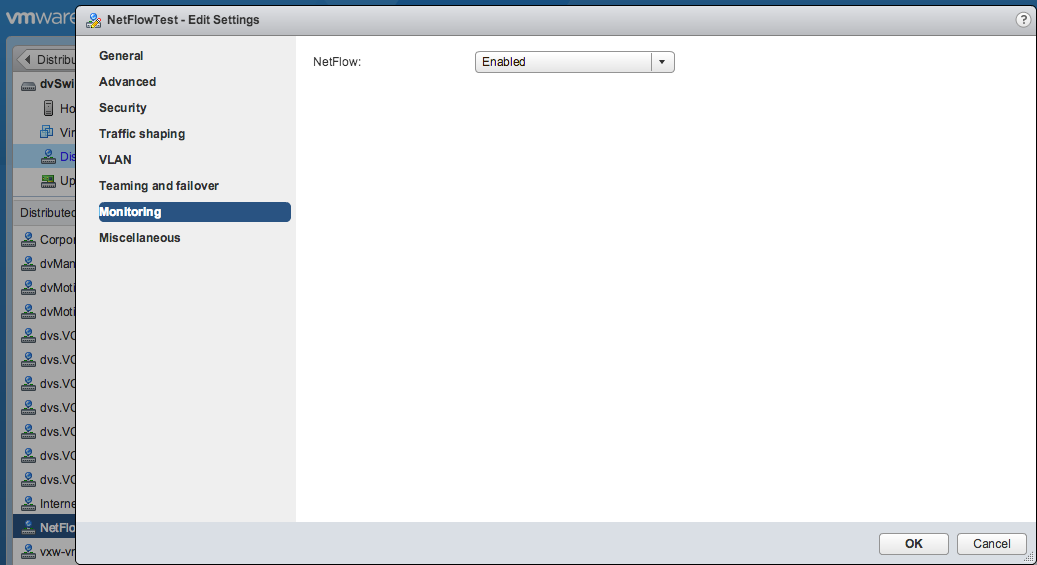
  1. Configure NetFlow properties on the dvSwitch.

    Hints:
    – Port is a UDP port which NetFlow collector will listen on. In NFDUMP, it is 23456! by default.
    – Of course, IP session between dvSwitch and NetFlow collector should be established in a proper way. I mean dvSwitch should see NetFlow collector.

  2. Enable NetFlow on the specific dvPort group.netflow

That’s it. In the next post, I will show how you can use a free, simple NetFlow Analyzer (nfdump, nfsen) to gather and display information about IP traffic flows in your dvSwitch.

Deploying IDS in VMware vSphere

As a network or cloud administrator in VMware environment, we would like to have the same capabilities we’ve got in a physical network. One of the most important tasks is network traffic monitoring and inspection control. Let’s say you want to install a network Intrusion Detection System (like SNORT) to monitor the traffic of a specific Virtual Data Center in vCloud environment that is translated to monitoring a specific VLAN or port group in VMware vSphere. Fortunately, VMware 5.x provides these features but apparently implementing these features is beyond VMware vCloud Director operations and it’s part of infrastructure administration tasks introduced in vSphere 5.x.
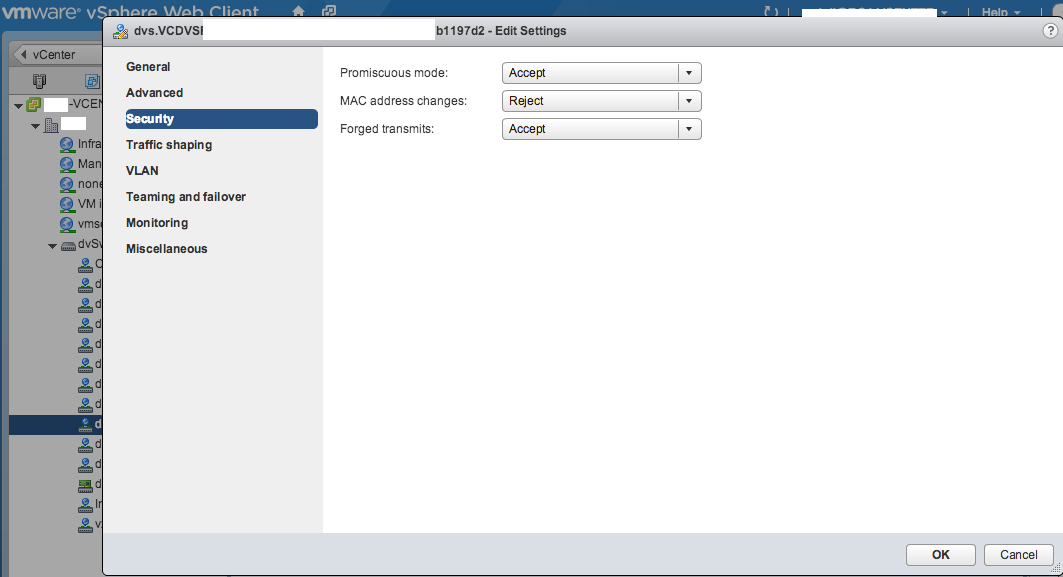
Since normally there is a port group in Distributed Virtual Switch defined by vCloud Director for each virtual data center, let’s talk about port groups in VDS. You may have noticed that when you want to create a port group in a distributed switch, you can define some security policy and one of the policies is enabling ‘Promiscuous Mode’. This is exactly equivalent to enabling promiscuous mode in a physical switch. So, as shown in the following picture, a port group can be edited to enable this mode (in vSphere Web client).

promisc

The only concern is that promiscuous mode should be defined on a port group or the whole distributed switch and not on a particular port. Doing this will cause all the traffic to be forwarded to all of the VM’s in that port group! and apparently it’s a security risk because we would like to forward the traffic to only one specific VM (port) which is our IDS. A work-around here would be to define a new port group with the same VLAN ID of the port group/VLAN we would like to monitor with the exact same configuration, then enable promiscuous mode for this newly defined port group and place the IDS VM in this port group. Because VLAN ID is the same, only IDS VM would see all the traffic. That’s an easy trick! BUT I don’t know how this trick works in some vCloud port groups that use VCDNI-backed port groups instead of VLAN-backed network pools because as I understood, VCDNI is kind of encapsulation introduced by vCloud Director and I’m not sure if a port group that is created inside vCenter can decapsulate packets. I didn’t find enough information, so I will test this out and report it in this blog.

Another approach is to use Port Mirroring feature of a VDS. Using this method it’s possible to specify source ports which need to be monitored and destination port/ports where IDS is located.

This solution is explained in detail in the following link:

vSphere 5.1 – VDS Feature Enhancements – Port Mirroring

Extra Large Edge Gateway in vCloud Director 5.5

Sometimes you feel like implementing a powerful edge gateway in your VMware vCloud environment. Let’s say you have heavy load and you plan to use load balancer capability of edge gateway in VMware vCloud Director. Unfortunately hardware configuration of vShield edge gateways are not customizable through vCloud Director and changing hardware configuration through vCenter is not possible. Also, hardware templates for use as edge gateways are limited in terms of processing power and memory. There are 3 pre-defined hardware configurations in vCloud Director 5.5: Compact, Full and Full-4. Full-4 type is a new one in vCloud 5.5 and as I know Full gateways in vCloud 5 are upgraded to Full-4 automatically when you upgrade the infrastructure to version 5.5. In brief, hardware configurations for vShield edge gateways are as follows:

  • Compact: 1 * vCPU and 256 MB of Memory – 64000 concurrent sessions
  • Full: 2 * vCPU and 1024 MB of Memory – 1,000,000 concurrent sessions
  • Full-4 (new in vCloud 5.5): 4 * vCPU and 1024 MB of Memory

I didn’t find updated detailed information for vCloud 5.5 but you can see more details about edge gateway specifications and performance parameters in vCloud Director 5.1 at this useful link.
As you see, hardware power is limited especially in regards to memory. So, in case you need a memory intensive edge gateway (Load balancer is a good example) you need to upgrade the hardware. Although there is no direct method to this through vCloud Director admin panel, the fact is that vShield Manager has this capability to implement x-large gateways. x-large edge gateway in VMware Networking and Security 5.5 has 4 * vCPU and 8GB of Memory that is quite considerable.

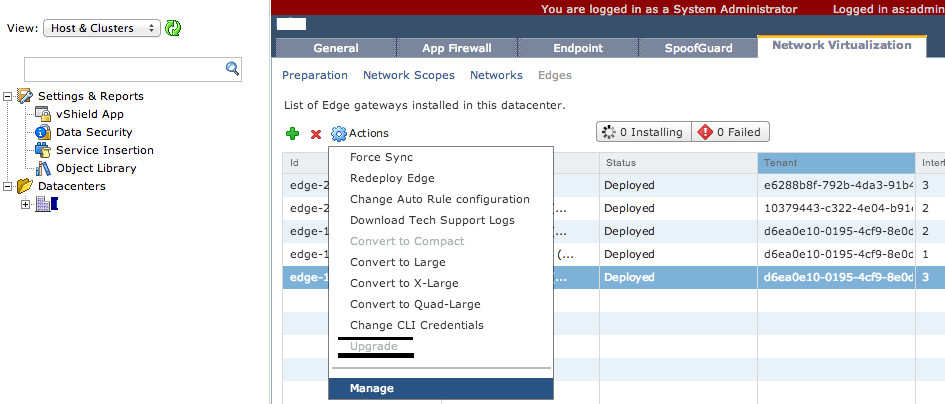
As VMware recommended, if you need to upgrade hardware configuration of an edge gateway in vCloud Director, you can use vShield portal to do so. As it’s shown in the following picture, login to vShield Manager admin panel, choose your Datacenter, on ‘Network Virtualization’ tab select ‘Edges’, click on the edge gateway you intend to upgrade and finally from Actions menu choose: ‘Convert to X-Large’. That’s all.

Just keep in mind that in the picture above login to vShield Manager is done via vCenter. So, the ‘Network Virtualization’ tab shown in the figure is within vCenter; however it’s a bit difficult to get into vShield Manager through vCenter and I faced some weird errors about Acrobot Adobe! As a result, I recommend to use vShield Manager directly to avoid such issues.

Sticky sessions in vShield Edge Gateway Load Balancer

One of the features of edge gateways in VMware vCloud Director is the capability of implementing load balancer for HTTP, HTTPS and TCP-based applications in a virtual data center. For web applications (in specific HTTP), session management is an important matter. If web developers don’t implement session management in application level (using database, … to store sessions) and rely on Cookies, load balancer could be an issue. In these cases, network administrators are asked to configure load balancer with sticky session. Simply it means that if a client is forwarded to a web server for the first time (especially login page), it should stick to that specific server in later web requests. If it doesn’t happen, user may be forced to login again that would be frustrating!

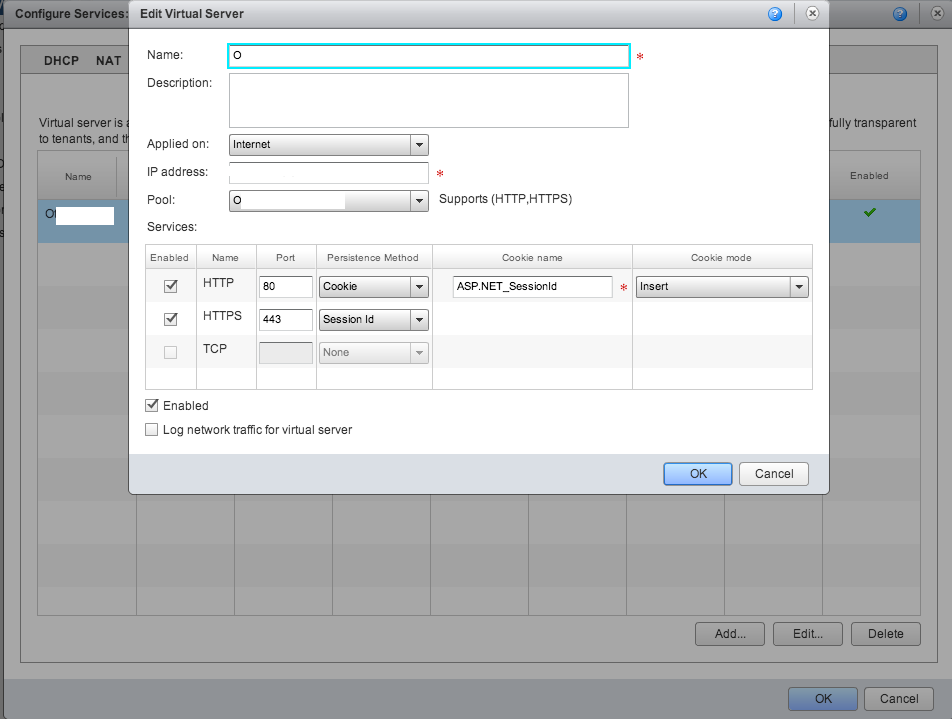
By the way, when it comes to configuring vShield Edge Gateway to do load balancing, there is no obvious option to choose Sticky Session but it’s possible to do this by specifying proper value for Cookie name in the Virtual Server. As it’s shown in the picture, the procedure is as follows. I assume that you already know how to implement Load Balancer by creating Pool Servers and Virtual Server. See this link fore more information on how to create Load Balancer.


lb_vcns

  1. Right Click on the Edge Gateway and choose ‘Configure Services’
  2. Select ‘Load Balancer’ tab
  3. Go to ‘Virtual Servers’ section
  4. Edit selected Virtual Server
  5. Choose ‘Cookie’ as Persistence Method instead of default ‘None’
  6. Type proper value as Cookie Name; i.e, ‘ASP.NET_SessionId’ for .NET application, ‘PHPSESSID’ for PHP, … (ask your developer)

Upgrade VMware vCloud Networking and Security to 5.5

When you want to upgrade VMware vCloud Director 5.1 to version 5.5, VMware vCloud Networking and Security should be upgraded to 5.5 as well because vCloud Director 5.5 is not backward compatible with vShield 5.1. Unfortunately and surprisingly, the documentation on VMware website to do so is not accurate! and it took some time for me to realize what’s the correct procedure. So, I thought it would be useful to share it here for those who can’t find the things mentioned in VMware website to upgrade VMware vCloud till they modify the documentation.

Actually, the part which is not accurate is where it explains the steps to upgrade vShield Edge appliances and it is a crucial part because failing to do this will result in failure in managing Edge gateways through vCloud Director interface. Since there would be one vShield Edge system appliance for each Edge Gateway that is created in Virtual Data Centers, you will have considerable number of vShield Edges in your environment and you should take care of them one by one. By the way, after upgrading vShield Manager to 5.5 is done (it’s easy, just uploading the upgrade bundle in vShield web console and reboot), the most important one is Upgrading vShield Edge.

Let’s look at the document on VMware website: Best practices for upgrading to VMware vCloud Networking and Security 5.5 , it says:

If you have vShield Edge 5.1.0 or later instances, upgrade each Edge:

  1. Log in to the vSphere Client.
  2. Click the data center for which vShield Edge instances are to be upgraded.
  3. Click the Network Visualization tab. All existing vShield Edge instances are shown in the listings page. An arrow icon is shown for each vShield Edge that must be updated.
  4. Click an Edge and click Upgrade from Actions to start the upgrade. When the Edge is upgraded, the arrow icon no longer appears.
  5. Repeat for each vShield that must be upgraded

After logging in to vSphere client, you will notice that there is no “Network Visualization” tab, but instead “Network Virtualization” tab. It must be a typo but even after clicking on “Network Virtualization” you will face some errors complaining about not having Acrobot Adobe Reader and so on! While the proper way to do this is to Log in to vShield Manager Web console (not vSphere Client) and look for Network Virtualization (instead of Visualization) under your DataCenter and the rest of steps are the same. You need to choose each Edge, select “Actions” on the top and choose “Upgrade” which will result in an automatic upgrade of that special Edge Gateway to new version.

vshield5.5

I hope they modify their document because it is considered as the most reliable one.