Migrate a VM by changing Datastore in vCloud Director

Migrating and relocating VMs is a great feature in Virtualized environments. You can do migration and perform your maintenance without disrupting any service. Migration in VMware is easy by utilizing vMotion in vCenter. You right click on VM, then choose Migrate and follow the instructions. But how we can relocate (change datastore or storage vMotion) a VM in vCloud Director?
Actually I was expecting the procedure in vCloud Director to be similar to vCenter, but when I right-clicked on the VM, I couldn’t find a ‘Migrate’ option or something like that. And apparently it’s not a good practice to migrate a VM which is controlled by vCloud Director through vCenter. But fortunately storage vMotion is possible in vCloud Director if you have separate Storage Profiles. To do this kind of relocation, right-click on the VM, then choose ‘Properties’; in ‘General’ tab you will find a pulldown menu for changing Storage Profile. Simply change Storage Profile to the desired one and bingo! Storage will be changed. You can even see the progress of relocation in vCenter.

Some tips:

  • As mentioned, changing datastore is possible if proper storage profiles are defined in the environment. That being said, it’s not possible to relocate to an individual, specific datastore. Actually, storage profile is another abstract layer over storage infrastructure that is being used by vCloud Director. To be honest, I didn’t have deeply realized what’s the main purpose of introducing storage profile and storage capability yet and why it doesn’t use datastore cluster instead. By the way, keep in mind that you need to create separate storage profiles if you have separate storages and you want more flexibility in vCloud. To get more information, look at this link: Using Storage Profiles with vCloud Director.
  • I couldn’t find much resources on the effects of migrating a VM from one host to another in vCloud Director environment; it is possible to perform this in vCenter and I did it in some cases with no issues. I suppose vCloud Director is working on higher level and will be notified of the changes.
NAT and PAT in vCloud Director 5.1

In VMware vCloud Director 5.1, NAT (Network Address Translation) and PAT (Port Address Translation) can be implemented using Edge Gateway of a vDC. Edge Gateway is created by Networking and Security component if you want a routed network in your Virtual Data Center.

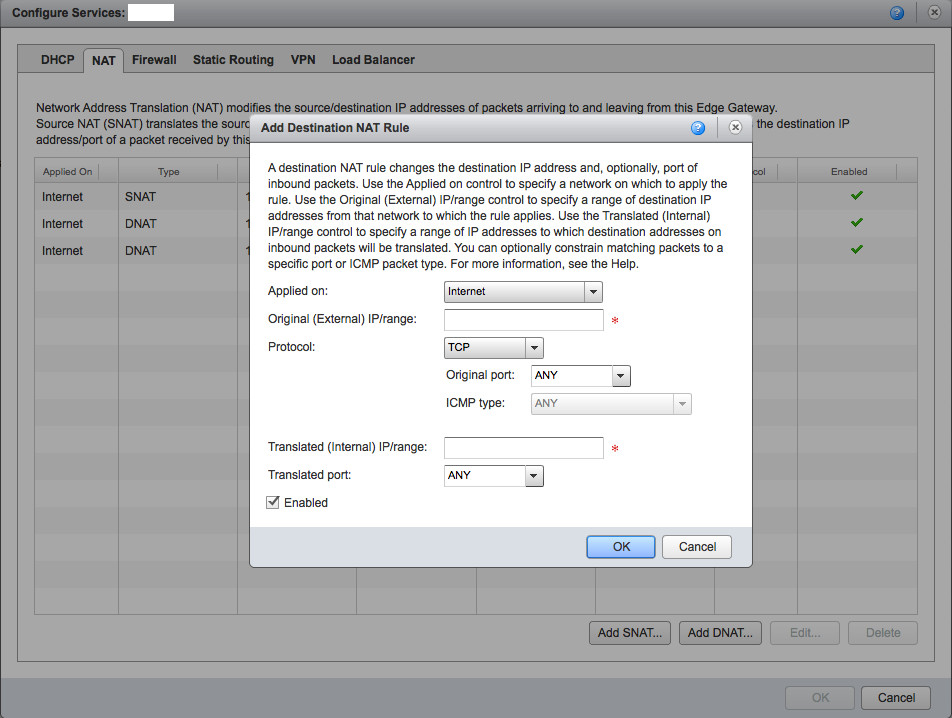
Both NAT and PAT rules can be added/configured in Edge Network Services under NAT tab. There you can define Source NAT/PAT (SNAT) or Destination NAT/PAT (DNAT) rules. Apparently, SNAT provides connectivity to external network for your internal network users/machines and DNAT provides access to your internal network (the whole network or a specific machine or a specified port) from an external network.

NAT

The interesting point is that as it shown in the figure, in both cases, either SNAT or DNAT you have to choose your external network (‘Internet’ in this example) as the ‘Applied on’ network.

The other important thing is that you need to have a Firewall rule for NAT/PAT rules. For example if you are PAT’ing port 80 of an external IP to port 80 of an internal IP (DNAT), there must be a rule in Firewall that allows access to port 80 of external IP. In fact, in this case it is firewall that acts first; after firewall allows the connection, translation (DNAT) would be done.

Shutdown VMware Cloud infrastructure

For whatever reason, when you want to shutdown the whole VMware Cloud infrastructure, you need to be considerate about the order of turning off VMs, Servers and equipments. Using common sense we can give a rule of thumb: first all operational, regular VMs hosted on VSphere ESX’s; of course VMs that are part of infrastructure (like SQL server) should be excluded. Then,  it’s VMware infrastructure turn and at last (but not least!) hardware equipments. To be more specific, for a regular VMware vCloud Director environment, the shutdown order would be:

  1. Customers operational VMs, vApps
  2. Management, Monitoring Servers
  3. VMware vCloud Director (RedHat server)
  4. VMware vShield Manager
  5. VMware vCenter
  6. DNS Server
  7. Database Server (MS SQL Server)
  8. ESX Hosts
  9. Storages (SAN)
  10. Networking

Apparently, the order of booting up the whole infrastructure is reverse; from 10 to 1. That’s it. Good luck with your maintenance or re-location!

Securing Access to VMware vCenter

Since VMware vCenter uses ports 80, 443 to provide access to management console (for both vSphere Client and Web Console), it’s important to secure these ports. Having said that, it can be limiting access to specific IP addresses in your internal network. If there is no firewall between your internal network and Cloud infrastructure, at least configure Firewall in Windows machine (if vCenter is installed on Windows) to restrict access.

Also, for a complete list of tasks to harden vCenter Security, you can see Security Advisories, Guides document from VMware.

VMware vCloud Director Guest Customization Support

It’s nice to use Guest Customization feature in VMware vCloud Director 5.1. Some operations like IP assignment to VM’s created by template is much easier if Guest Customization is supported in the OS of virtual machine. Not all the OS’s support this feature. For a complete list of supported OS’s, see here.
Apparently, you need to install VMware-Tools on the base VM (to be used as template in vCloud Director). For a Linux machine, two important things should be considered:

  • For VMware Tools to be installed automatically, you need X Server. So, if you are working in text mode, you have to do it manually. VMware Tools is mounted on cdrom and then you should issue ‘vmware-install.pl’
  • Never use VMware Tools packages provided by specific Linux distribution. Install by mounting VMware Tools in vCenter.

Is it safe to reboot MS SQL server in VMWare environment?

VMware vCenter and VMware vCloud need a database to store important information (most importantly, configuration). Due to critical nature of data, database server needs to be an enterprise class one. Supported databases are Microsoft SQL, Oracle (for a full list, see here). Of course, high availability should be considered for database server, but  you may wonder if it’s safe to restart database server for a short time? For example, say you still didn’t implement high availability and you need to do a Windows update. You want to reboot database server but you don’t intend to reboot the whole environment, I mean vCloud Director, vCenter itself, … So, the question would be: Is it possible that rebooting database server causes crash or any harm in other VMware components?
I decided to experience this in my Lab environment and the answer is: It’s generally safe to reboot! And it seems reasonable; as long as you are not changing configuration on your infrastructure.
Although, when I started some administration jobs in vCloud Director, like modifying a VM or adding a VM to a vApp, I got some weird error messages.  In fact, vCloud Director complained: “Error while connecting to sphere profile driven storage service”. I never saw this before and actually I’m not sure what profile driven storage service is! So, I looked into my vCenter server. In Administration, Management, there was an icon, named ‘VM Storage Profiles’. It looked relevant, so I clicked on it. The error message appeared here too! Looking into the issue more, It turned out that there is a Windows Service named ‘VMware vSphere Profile-Driven Storage Service’ that was stopped, while it was ‘Automatic’ service.  I started the service and everything got back to normal.
It means that we can’t say rebooting database server is completely safe and some unexpected issues may happen. If you have to reboot your database server, make sure to check the health of your other servers (vCloud Director and vCenter in specific) by looking into Logs, Services, …

p.s – My Lab environment included MS SQL 2008 R2, vCenter 5.1 (on Windows 2008 R2), vCloud Director 5.1.2 (on RedHat 6)

vCloud Network Isolation (VCNI) Pools

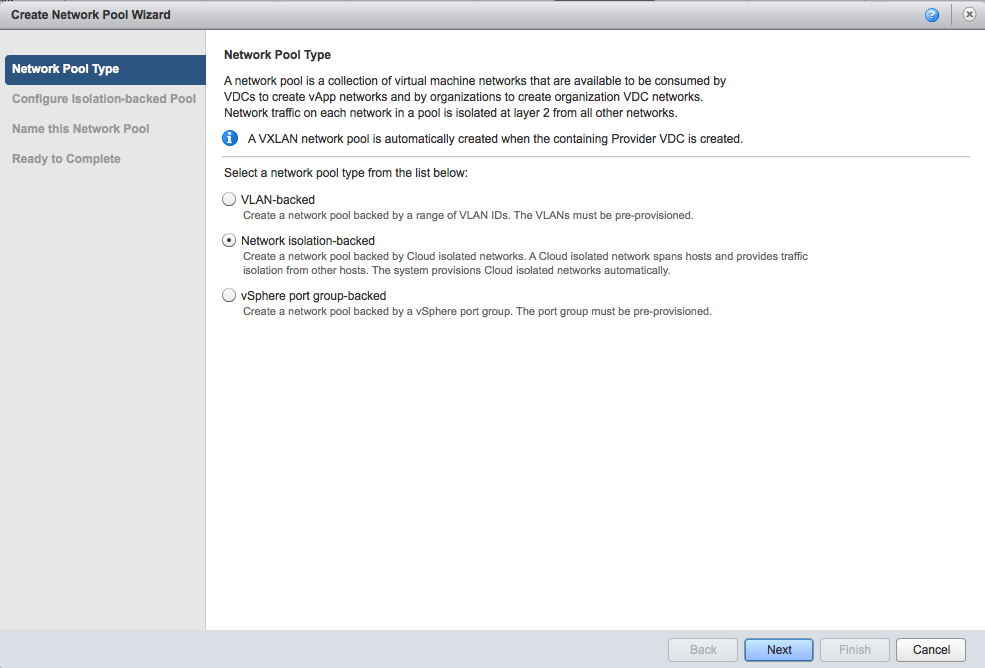
As everyone mentions, vCloud Network Isolation (VCNI) is the most complicated type of network pool in VMware vCloud Director. It is a proprietary technique (apparently by VMware) that uses MAC-in-MAC encapsulation to distinguish between different private networks in a single physical VLAN.

VCNI

Among all, VCNI has a big advantage for cloud administrators: It mitigates their need to deal with physical network administrators, because multiple VLANs can be created inside a single carrier VLAN; while in other types of network pools, a VLAN should exist or be created in physical network. Also, since it uses a proprietary technique to create virtual VLANs! (I know, it’s like Virtual Virtual LAN!) the number of VLANs is not limited (to 4096). Of course it’s not infinite, but it’s a very big number: 4 Millions. See here for more details.

However, implementing this type of network pool has a trick! Again, because it encapsulates networking packets, it has its own overhead which is 24 bytes. So, assuming that you create a vCloud Network Isolation network pool (as shown above), you are not done yet. You need to change the value of MTU to 1524 (to be safe, 1600 is recommended) in 3 levels:

  1. vCloud Director – It’s a secret to me why VMware doesn’t assign 1524 by default while it knows VCNI needs it! You can do this by right-clicking over this network pool and clicking ‘Properties’, then go to: ‘Network Pool MTU’ and change it to 1600.
    MTU Change
  2.  vCenter: Go to Home, Networking, choose the distributed switch between hosts; right-click and Edit Settings, select Advanced; change the value of Maximum MTU to 1600.mtu
  3. Physical switch – Depends on your equipment, but should be done.

Now that I encountered the steps required to have an operational VCNI and also mentioned advantages, keep in mind that there are some disadvantages for this type of network pool that you can find them in this great link explaining more details:
vCloud Director Networking – Part 2 in VMware Technologies Blog

p.s – If MTU is not changed, VCNI will still work but with poor performance because of fragmentation.