Shutdown VMware Cloud infrastructure

For whatever reason, when you want to shutdown the whole VMware Cloud infrastructure, you need to be considerate about the order of turning off VMs, Servers and equipments. Using common sense we can give a rule of thumb: first all operational, regular VMs hosted on VSphere ESX’s; of course VMs that are part of infrastructure (like SQL server) should be excluded. Then,  it’s VMware infrastructure turn and at last (but not least!) hardware equipments. To be more specific, for a regular VMware vCloud Director environment, the shutdown order would be:

  1. Customers operational VMs, vApps
  2. Management, Monitoring Servers
  3. VMware vCloud Director (RedHat server)
  4. VMware vShield Manager
  5. VMware vCenter
  6. DNS Server
  7. Database Server (MS SQL Server)
  8. ESX Hosts
  9. Storages (SAN)
  10. Networking

Apparently, the order of booting up the whole infrastructure is reverse; from 10 to 1. That’s it. Good luck with your maintenance or re-location!

Securing Access to VMware vCenter

Since VMware vCenter uses ports 80, 443 to provide access to management console (for both vSphere Client and Web Console), it’s important to secure these ports. Having said that, it can be limiting access to specific IP addresses in your internal network. If there is no firewall between your internal network and Cloud infrastructure, at least configure Firewall in Windows machine (if vCenter is installed on Windows) to restrict access.

Also, for a complete list of tasks to harden vCenter Security, you can see Security Advisories, Guides document from VMware.

tcpkill to Kill a TCP connection!

I recently found a very useful command in Linux named ‘tcpkill’. Actually, the other day I was trying to find a way to kill a tcp connection between my server and a client. Not that it was an attack or needed firewall rule, but simply I wanted it to be killed in order to let the upper layer application to re-establish connection. There was no utility in the upper layer application to do this and it handed TCP connection management over to OS (TCP KEEPALIVE in linux kernel). So, I started looking for the solution to kill the connection.
So, the solution was easy, just issue ‘tcpkill’ command with appropriate parameters. Parameters are compliant with ‘tcpdump’ filter formats. So, if you are familiar with ‘tcpdump’ you will find it easy. For more explanation, examples see the amazing cyberciti website.

VMware vCloud Director Guest Customization Support

It’s nice to use Guest Customization feature in VMware vCloud Director 5.1. Some operations like IP assignment to VM’s created by template is much easier if Guest Customization is supported in the OS of virtual machine. Not all the OS’s support this feature. For a complete list of supported OS’s, see here.
Apparently, you need to install VMware-Tools on the base VM (to be used as template in vCloud Director). For a Linux machine, two important things should be considered:

  • For VMware Tools to be installed automatically, you need X Server. So, if you are working in text mode, you have to do it manually. VMware Tools is mounted on cdrom and then you should issue ‘vmware-install.pl’
  • Never use VMware Tools packages provided by specific Linux distribution. Install by mounting VMware Tools in vCenter.

Supported Hardware Version in Provider vDC

Remember to change default value of “Highest supported hardware version” from 7 to 9 when you create a Provider vDC in VMware vCloud Director 5 or you will face some issues later on when you want to import VM’s from vCenter to your Catalogs and will get this error message:
“The selected vdc does not support required virtual hardware version”
The interesting point is that VM’s in vCenter are created compatible to Hardware Version 8 by default! In fact, there are some inconsistencies between vCenter, vSphere and vCloud Director; it is just one of them.

Is it safe to reboot MS SQL server in VMWare environment?

VMware vCenter and VMware vCloud need a database to store important information (most importantly, configuration). Due to critical nature of data, database server needs to be an enterprise class one. Supported databases are Microsoft SQL, Oracle (for a full list, see here). Of course, high availability should be considered for database server, but  you may wonder if it’s safe to restart database server for a short time? For example, say you still didn’t implement high availability and you need to do a Windows update. You want to reboot database server but you don’t intend to reboot the whole environment, I mean vCloud Director, vCenter itself, … So, the question would be: Is it possible that rebooting database server causes crash or any harm in other VMware components?
I decided to experience this in my Lab environment and the answer is: It’s generally safe to reboot! And it seems reasonable; as long as you are not changing configuration on your infrastructure.
Although, when I started some administration jobs in vCloud Director, like modifying a VM or adding a VM to a vApp, I got some weird error messages.  In fact, vCloud Director complained: “Error while connecting to sphere profile driven storage service”. I never saw this before and actually I’m not sure what profile driven storage service is! So, I looked into my vCenter server. In Administration, Management, there was an icon, named ‘VM Storage Profiles’. It looked relevant, so I clicked on it. The error message appeared here too! Looking into the issue more, It turned out that there is a Windows Service named ‘VMware vSphere Profile-Driven Storage Service’ that was stopped, while it was ‘Automatic’ service.  I started the service and everything got back to normal.
It means that we can’t say rebooting database server is completely safe and some unexpected issues may happen. If you have to reboot your database server, make sure to check the health of your other servers (vCloud Director and vCenter in specific) by looking into Logs, Services, …

p.s – My Lab environment included MS SQL 2008 R2, vCenter 5.1 (on Windows 2008 R2), vCloud Director 5.1.2 (on RedHat 6)

vCloud Network Isolation (VCNI) Pools

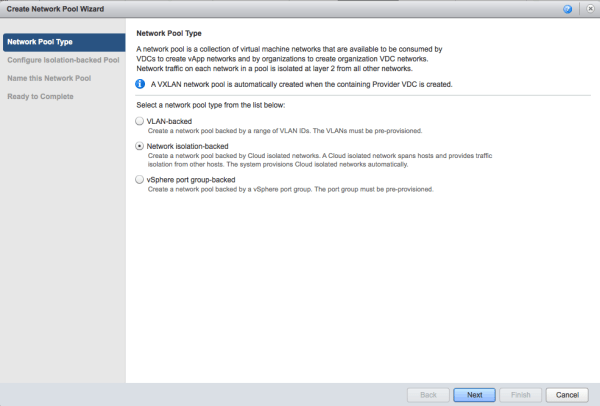
As everyone mentions, vCloud Network Isolation (VCNI) is the most complicated type of network pool in VMware vCloud Director. It is a proprietary technique (apparently by VMware) that uses MAC-in-MAC encapsulation to distinguish between different private networks in a single physical VLAN.
VCNI

Among all, VCNI has a big advantage for cloud administrators: It mitigates their need to deal with physical network administrators, because multiple VLANs can be created inside a single carrier VLAN; while in other types of network pools, a VLAN should exist or be created in physical network. Also, since it uses a proprietary technique to create virtual VLANs! (I know, it’s like Virtual Virtual LAN!) the number of VLANs is not limited (to 4096). Of course it’s not infinite, but it’s a very big number: 4 Millions. See here for more details.

However, implementing this type of network pool has a trick! Again, because it encapsulates networking packets, it has its own overhead which is 24 bytes. So, assuming that you create a vCloud Network Isolation network pool (as shown above), you are not done yet. You need to change the value of MTU to 1524 (to be safe, 1600 is recommended) in 3 levels:

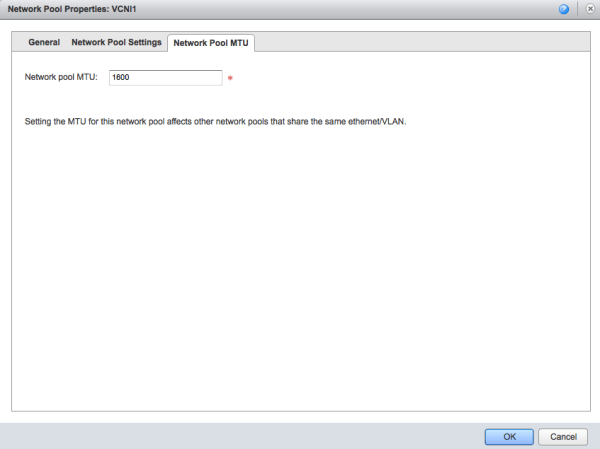
  1. vCloud Director – It’s a secret to me why VMware doesn’t assign 1524 by default while it knows VCNI needs it! You can do this by right-clicking over this network pool and clicking ‘Properties’, then go to: ‘Network Pool MTU’ and change it to 1600.
    MTU Change
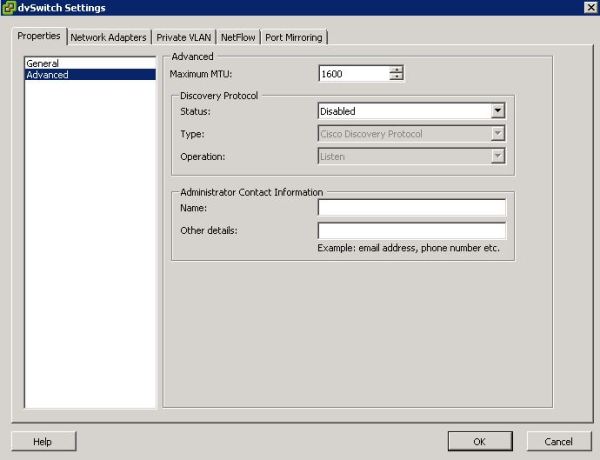
  2.  vCenter: Go to Home, Networking, choose the distributed switch between hosts; right-click and Edit Settings, select Advanced; change the value of Maximum MTU to 1600.mtu
  3. Physical switch – Depends on your equipment, but should be done.

Now that I encountered the steps required to have an operational VCNI and also mentioned advantages, keep in mind that there are some disadvantages for this type of network pool that you can find them in this great link explaining more details:
vCloud Director Networking – Part 2 in VMware Technologies Blog

p.s – If MTU is not changed, VCNI will still work but with poor performance because of fragmentation.
Simple SMTP Relay in Cloud

In a cloud environment, there are many cases that a send-only mail server (smtp relay) would be required. Apart from cloud, in other applications like monitoring systems (to send alerts, cron reports, …) having a mail relay is beneficial. Exim (exim4) in Linux systems is a simple, good and safe candidate.

Well, if you want to have exim4 in your cloud, first install a VM with light-weight linux system in your Infrastructure cluster. I’m writing this short guide considering Debian/Ubuntu as linux VM. And then most probably, you would like to connect this VM to management network. The rest is easy, here comes the required steps:

1) Install lightweight exim4. Exim4 by itself is simple but exim4-daemon-light is a very basic mail server with all our required features, lacking advanced, unnecessary (in this case) features like LDAP, MySQL authentication.

  • apt-get install exim4-daemon-light

2) Edit configuration file, by default is /etc/exim4/update-exim4.conf

  • 2-1) change dc_local_interfaces variable to add IP address of the NIC attached to your management network. By default, exim allows only local machine (loopback address, 127.0.0.1) to send email. You should add management IP address to be able to listen to other machines in management networks.  Example:
    dc_local_interfaces = ‘127.0.0.1 ; 192.168.50.150’

  • 2-2) change dc_relay_nets variable to restrict the machines which are capable of sending email through this mail relay server. Apparently, this should be the network address of your management network. By default, it is empty that increases the risk of being used by other unknown machines but you like to enable only machines in management network to use this mail relay server. Example:
    dc_relay_nets = ‘192.168.50.0/24’
  • 2-3) change dc_relay_domains parameter to increase security. Maybe you want to restrict the domains of recipients; because this mail relay server is being used for internal purposes (sending alerts, cron reports, …) your recipients are known and most probably they will use your organization email. It’s a good idea to restrict recipients to increase security. so, let’s do this:
    dc_relay_domains = ‘example.com’

3) restart exim service:

  • /etc/init.d/exim4 restart

That’s it. Enjoy your relay server.

To get started …

Well, there should be a beginning for everything and yes, it’s the beginning for this blog! So, let’s go over this cliche quick.

It’s going to be a technical blog about networking, as its name implies: some tweets about networking! I’m prone to cloud topics, though it won’t be limited to cloud stuff. You may ask do we need just another blog about networking or cloud computing? Ummm, I would say the number of ways to approach a problem equals the number of people who think about it. Networking and cloud is not a different story and this variety in techniques is beautiful!

My name is Mehdi Kianpour, now living in Canada. It’s like 15 years I’m working in this field and I think I can add something to online resources that may help other people fix their issues or understand a concept quicker. Recently, I’m engaged in some projects that are dependant on cloud technologies. Of course, we all know that cloud is the new (almost new) trend, while comparing to other networking stuff, there is less independent information over Internet. I will try to talk about some less experienced tasks and address some yet unknown issues and I hope this blog to be useful in this field.

And last but not least, I’m looking forward to hear from everybody (in specific other specialists) in my blog about the topics I cover or any other comment. So, see you soon!